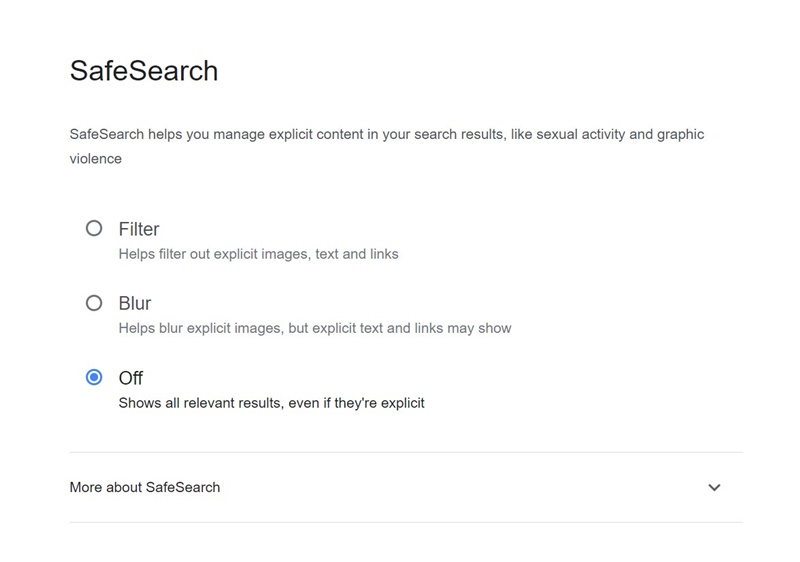
Google does take some precautive steps to protect its users from explicit content on the search results. On Google Search Results, you get something called SafeSearch that helps you manage explicit content at work, with children, or for yourself.
When the SafeSearch filter is turned on, you will see no or less nudity, graphic sex acts, or sexually explicit material. The filter also removes violence and gore from the search results.
SafeSearch is enabled by default on every Google Account, but some may want to turn it off. In this article, we will discuss how to turn off SafeSearch on Google Search.
There’s no specific reason to disable the Google SafeSearch filter, but sometimes, you may want to view the content already blocked by the filter.
Sometimes, you may want to have information about a controversial topic, which will only be possible by disabling Google SafeSearch.
So, you may have a reason to disable the Google SafeSearch filter. Whatever it is, it’s possible to turn off the smart filter from the Google Search.
If you use Google Search from your desktop or laptop, follow these simple steps to turn off the Google SafeSearch filter.
1. Open your favorite web browser.
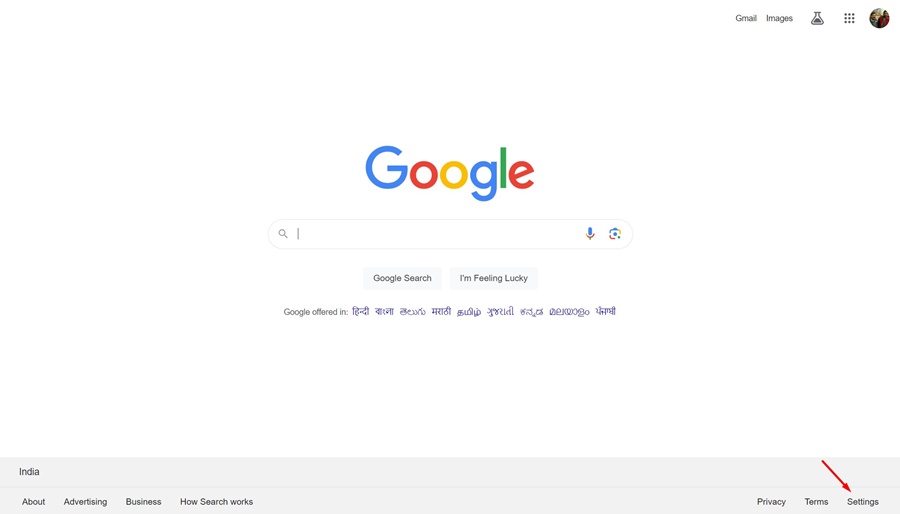
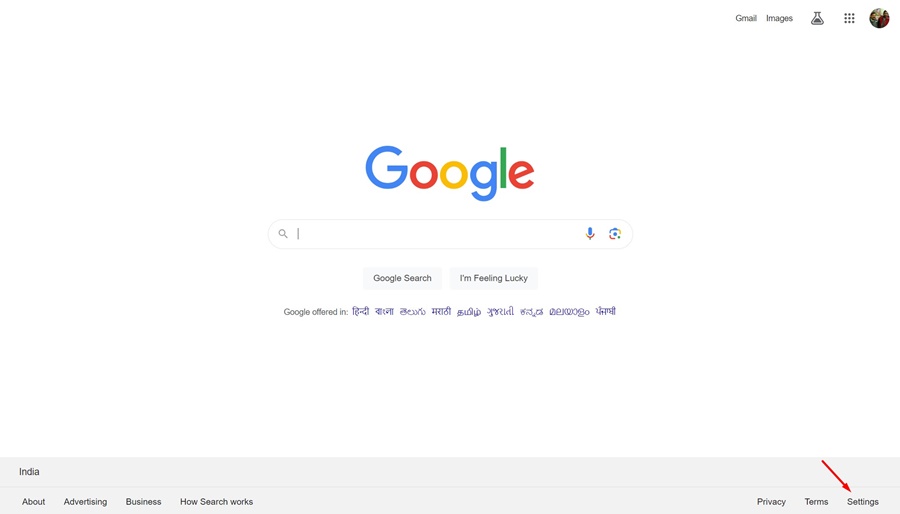
2. Now, visit to the Google Search home page.
3. At the bottom right corner, click on Settings.
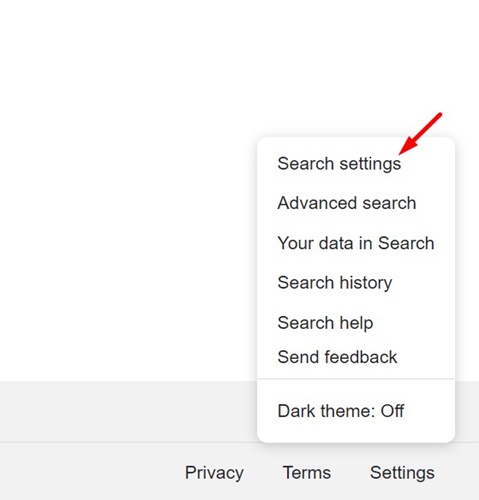
4. On the menu that appears, select Search Settings.
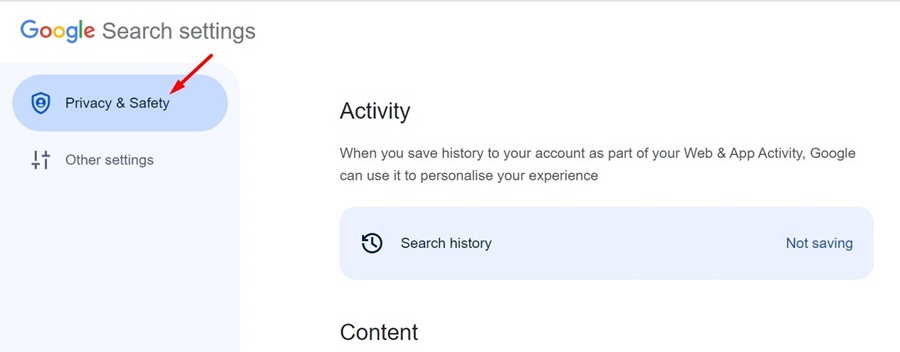
5. On the Google Search Settings screen, switch to Privacy & Safety.
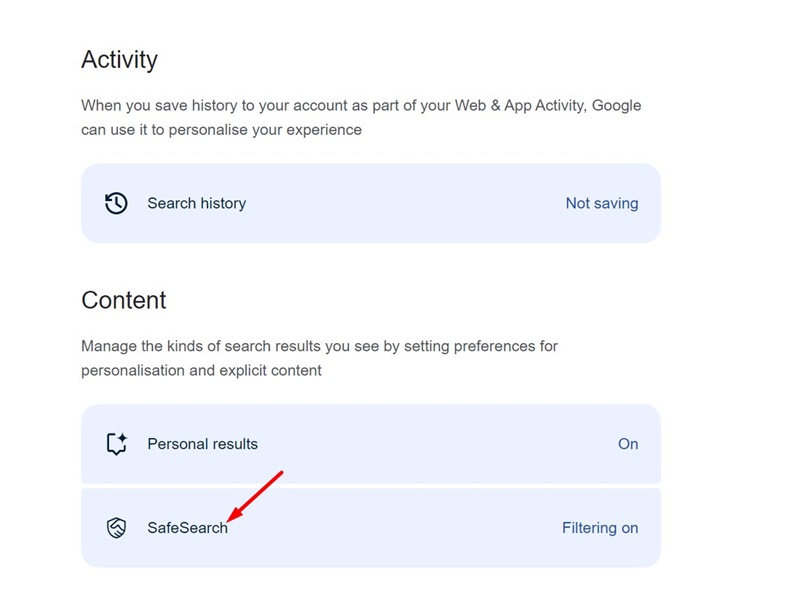
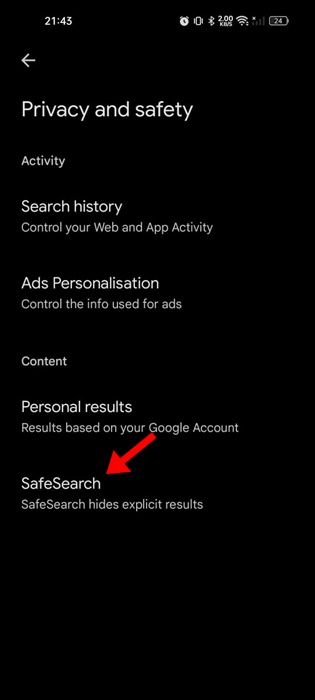
6. Next, click on the SafeSearch under the Content.
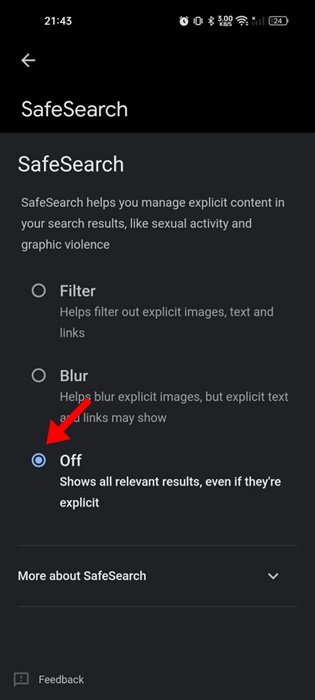
7. On the SafeSearch window, select Off.
This will turn off the SafeSearch filter. You can now click on the Google icon in the top right corner to return to the Google Search home page.
If you use Google Search from your Android phone, follow these simple steps to turn off Google SafeSearch. Here’s what you need to do.
1. Open your favorite web browser on an Android phone.
2. Now, visit the Google.com webpage.
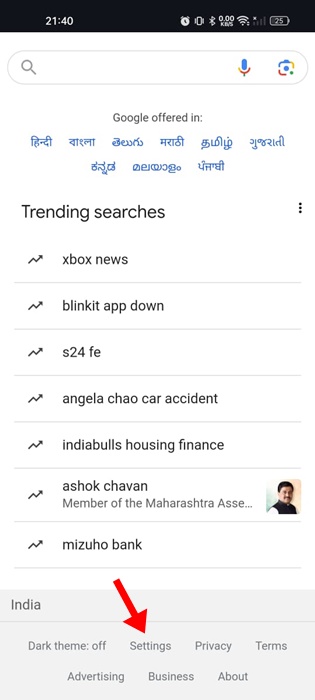
3. On the Google Search page, tap on the hamburger menu at the top right corner. Or else, scroll down to the bottom and select Settings.
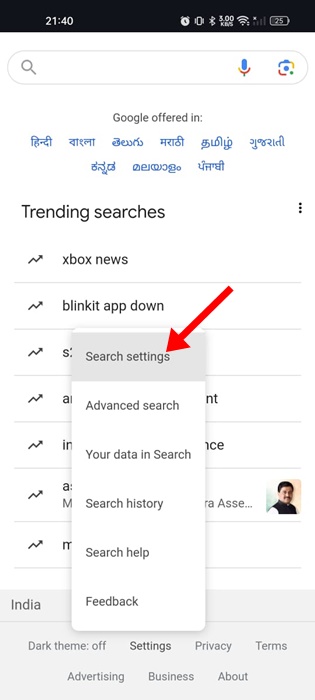
4. On the menu that appears, tap on SafeSearch or Search Settings.
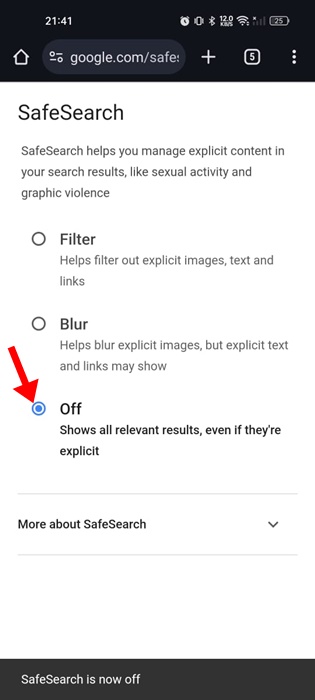
5. On the SafeSearch settings, choose Off.
After making the changes, you can just tap the back arrow at the top-right corner to return to the Google Search page.
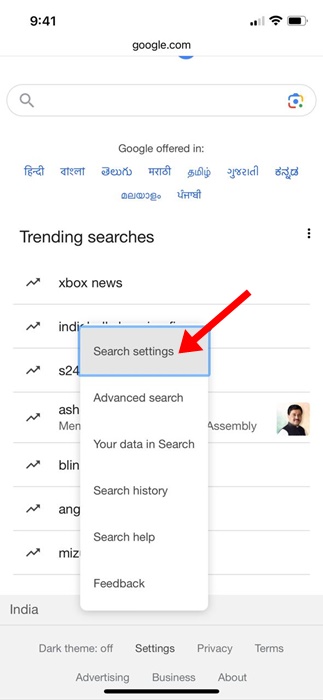
If you are an iPhone user, you must follow these simple steps to turn off Google SafeSearch. Here’s what you need to do.
1. Open your favorite web browser and visit Google.com.
2. When the Google Search page opens, scroll down to the bottom and select Settings.
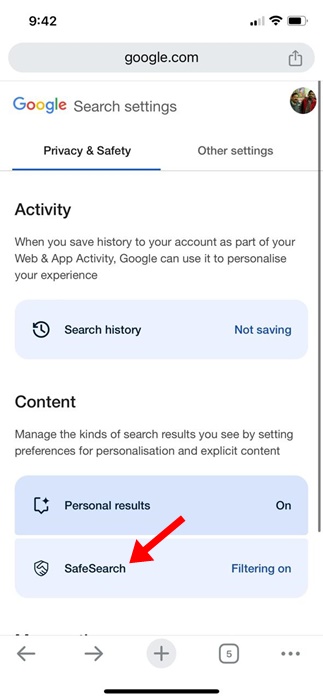
3. On the menu that appears, select Search Settings.
4. On the next screen, tap on SafeSearch.
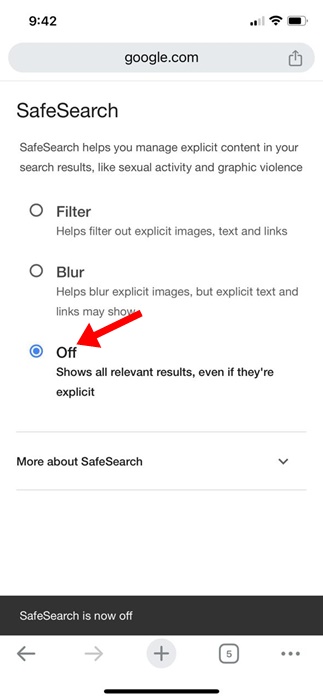
4. On the SafeSearch settings, select Off.
That’s it! This will disable Google SafeSearch on your iPhone.
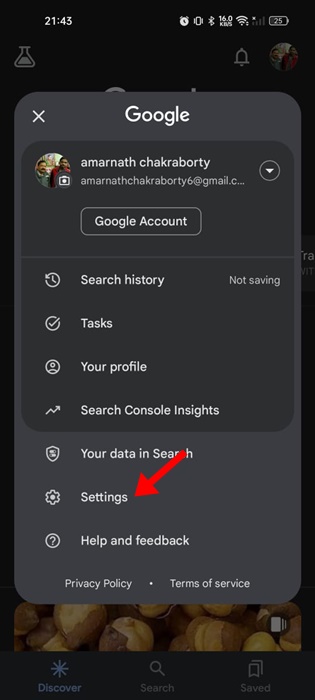
If you use the Google App for Android or iPhone to access the search results, you must follow these steps to turn off the Google SafeSearch.
1. Open the Google app on your Android or iPhone.
2. Next, tap your profile icon at the top right corner.
3. On the prompt that appears, select Settings.
4. In Settings, tap on SafeSearch.
5. On the SafeSearch Settings, choose Off.
After making the changes, go back to the Google Search home page and perform a search.
So, these are some of the best ways to turn off Google SafeSearch. We have shared the steps to turn off Google SafeSearch on Desktop, Android, iPhone, and the Google App. Let us know in the comments below if you need more help on this topic.
The post How to Turn Off SafeSearch on Google Search (Desktop & Mobile) appeared first on TechViral.